Networking and Security
Wifi Password 192.168.l00.1, how to Change?
By Amjid Ali · · Updated · 1 min read
In this article
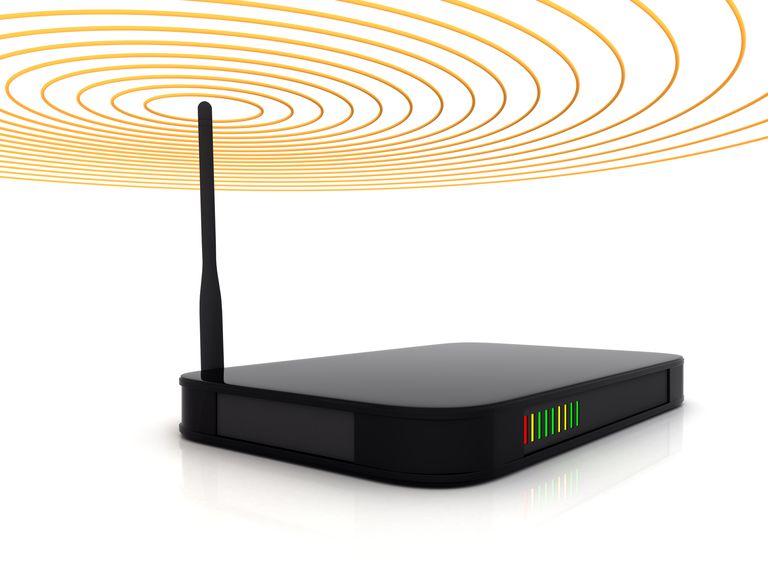
Wifi Password is in fact an Encryption key which means that data transmitted on wireless network is not visible to others. To secure wireless network there are other methods, but this post is for the home users to help them to secure wireless network.
How to reset Wifi Passwords
Step 1 : Login to Router
First you must open the browser or click below links because below are most common ip addresses of routers.
You can check the router password to login to the router most of router are having default passwords written on them, however you can try default password like (UserID : admin, password : admin) in some cases user id id root). At the time of installation you can always ask from telecome operator to provide you userID and password of router. If you don’t have one you can always check the model number of router and check for the default password one related brand website.
Step 2 : Locate for WLAN Configuration
One you have successfully logged in to the router, you can locate WLAN configuration or Wireless Setup, in most cases it will be available on left menu. E.g in case of Dlink below is explanation.
Dlink Wireless Password
TP Link Wireless Password
For TP Link here is the procedure to change the password
Keep reading
 Networking and SecurityThe Ultimate Guide to pfBlockerNG Recommended Feeds in 2025Discover the best pfBlockerNG feeds for 2025, including ad blocking, DNSBL, and recommended lists for enhanced network security and performance. Perfect for pfSense setups! · 3 min read
 Networking and SecurityStep-by-Step Guide to Installing Wazuh on Ubuntu Server 24.04Wazuh is a powerful, open-source security platform for monitoring and threat detection. In this guide, we will walk you through the installation process... · 2 min read
 Networking and SecurityHow to Secure Your External Drive with Password ProtectionLearn how to enhance your data security with step-by-step instructions on password protecting your external drive using BitLocker encryption. Whether you're on Windows 11 Professional or moving data across platforms, this guide ensures your information stays secure. Subscribe now for more tech tutorials and stay informed! · 1 min read