Cloud and Self-Hosting
Netboot xyz pfsense docker full tutorial
By Amjid Ali · · Updated · 1 min read
In this article
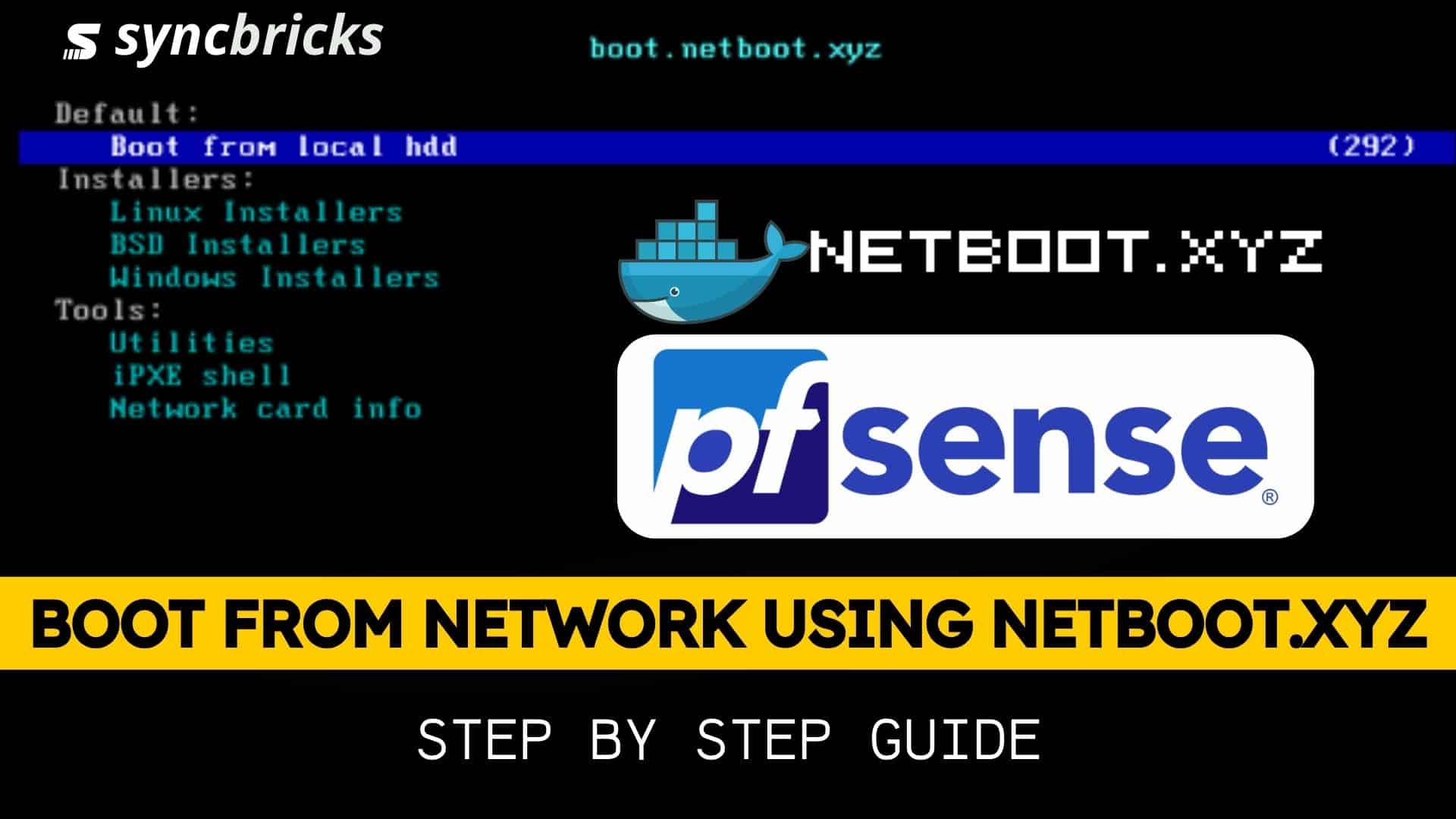
This guide will help you to step by step configure and install netboot.xyz on docker and then confgiure on pfsense. You need to have Docker Up and Running and then you must create docker container and pfsense. Once pfSense is configured then you simply need to boot your machine from network, that is it, your Network Boot will be ready using netboot.xyz on docker and pfSense as DHCP Server for TFTP and Netboot Configured. In this guide complete commands and process is explained bleow;
Setting Up Docker Container for NETBOOT.XYZ
First create Docker Container using Docker Compose file.
Step 1 : Setup Docker Cotainer
Create a Folder for your stack for example (netboot) inside this folder create two folders one naming “assets” another naming “config”.
Step 2 : Start netboot.xyz container using docker compose
create docker.compose.yml file copy content of file as below
---
services:
  netbootxyz:
    image: lscr.io/linuxserver/netbootxyz:latest
    container_name: netbootxyz
    environment:
      - PUID=1000
      - PGID=1000
     # - MENU_VERSION=1.9.9 #optional
      - PORT_RANGE=30000:30010 #optional
      - SUBFOLDER=/ #optional
    volumes:
      - ./config:/config
      - ./assets:/assets #optional
    ports:
      - 3000:3000
      - 69:69/udp
      - 8080:80 #optional
    restart: unless-stopped

#made by Amjid Ali @syncbricks.com
Step 3 : Start Container
Now Save the file and start the docker container as by typing the below command
docker compose up -d
Configure pfSense for NetBoot.xyz
Step 4 : Setup TFTP
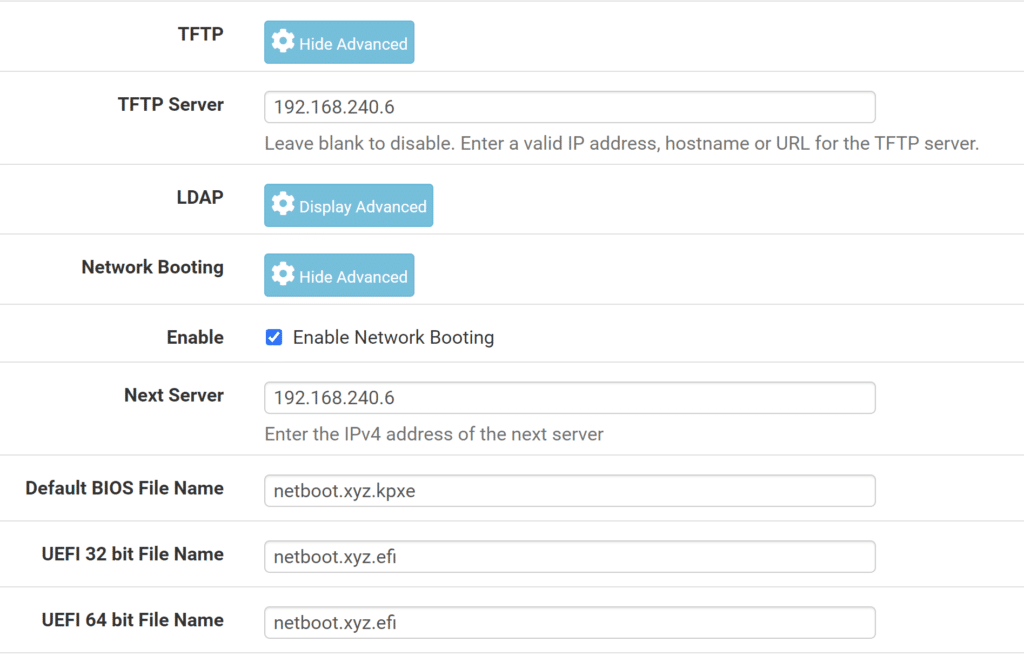
Now simply enable the TFTP Server and provide the IP Address of your Server where Docker Container is created. Provide the IP Address in TFTP Server in my case it was 192.168.240.6.
Step 5 : Netboot Configuration pfSense
Enable Network Booting and Provide the IP Address in Next Server and Finally add the Default Bios File Name as netboot.xyz.kpxe and for other architectures netboot.xyz.efi OR follow below screenshot.
Boot Computer or VM from Network
Now simply start the boot from Network and your System will load the netboot.xyz using Docker Container and pfSense DHCP
Step by Step Tutorial on Syncbricks Youtube Channel
Keep reading
 Cloud and Self-HostingInstalling Kubernetes Dashboard on a K3s High Availability Cluster (Ubuntu 24.04)The Kubernetes Dashboard is a browser-based UI that allows you to visualize, manage, and troubleshoot workloads and resources inside your Kubernetes clu... · 2 min read
 Cloud and Self-HostingInstall a 3-Node HA Kubernetes (K3s) Cluster on Ubuntu Server 24.04 Step-by-Step (Proxmox/VM Friendly)Step-by-step guide to install a 3-node HA Kubernetes (K3s) cluster on Ubuntu Server 24.04 using Proxmox VMs. Includes setup, firewall rules, tokens, and verification. · 5 min read
 Cloud and Self-HostingHow to Install and Configure n8n on Oracle Cloud Always Free VM (Ubuntu 24.04)n8n (short for nodemation) is an open-source workflow automation platform that allows you to connect applications and APIs, automate repetitive tasks, a... · 4 min read