Cloud and Self-Hosting
Complete Guide to Hyper-V VM Backup
By Amjid Ali · · Updated · 3 min read
Hyper-V is a hypervisor-based virtualization technology developed by Microsoft. It allows for the creation and management of virtual machines (VMs) on a single physical server. Each VM operates as an independent computer system, capable of running its own operating system and applications. Hyper-V empowers organizations to consolidate multiple virtualized servers onto a single physical server, optimizing resource utilization and simplifying IT management.
Hyper-V VM backup is essential for protecting your data and ensuring business continuity. To ensure that your backups are efficient and effective, it’s important to follow best practices such as limiting the number of roles per VM, using incremental backups, and testing your backups regularly.
Available Methods for Hyper-V Virtual Machine
There are several tools available for backing up your Hyper-V VMs such as:
- Windows Server Backup,
- System Center Data Protection Manager (DPM)
- Third-party backup solutions.
Next, we’ll provide a step-by-step guide on how to back up your Hyper-V VMs using AOMEI Cyber Backup.
Back up Hyper-V VMs Easily and Reliably
AOMEI Cyber Backup is an enterprise data backup solution that helps safeguard all data in VMware, Hyper-V, and SQL Servers. It provides flexible scheduling options, allowing users to automate backup tasks based on specific time intervals or events. Automated backups ensure regular protection of Hyper-V VMs, reducing the risk of human errors and enhancing operational efficiency.
✦Ease of Use: AOMEI Cyber Backup provides a user-friendly interface that simplifies the backup process, making it accessible to both beginners and IT professionals to easily configure and schedule backups.
✦Comprehensive Backup Options: AOMEI Cyber Backup supports agent-based backups, agentless backup, image-level backups, offering flexibility to match different requirements. Users can choose the backup method that best suits their virtualized environment and recovery objectives.
✦Incremental Backups: AOMEI Cyber Backup optimizes storage space by performing incremental backups. This means that after the initial full backup, subsequent backups only capture changes made since the last backup. This ensures efficient use of resources and reduces the backup time and storage requirements.
✦Centralized Management: The software allows for centralized management of backup tasks, enabling efficient monitoring, scheduling, and managing multiple VM backups. Administrators can have a comprehensive overview of the backup status and easily manage backups for their VMware Datastore environment.
✦Cost-Effective: AOMEI Cyber Backup offers competitive pricing options, making it an affordable solution for businesses of all sizes. It offers a lifetime free version and can customize an exclusive backup solution for your business as well.
AOMEI Cyber Backup supports Hyper-V in Windows 8/8.1/10/11, Windows Server/Microsoft Hyper-V Server 2012 R2 and later versions. Next, please go through the backup process of Hyper-V VM.
Protect Hyper-V data with AOMEI Cyber Backup
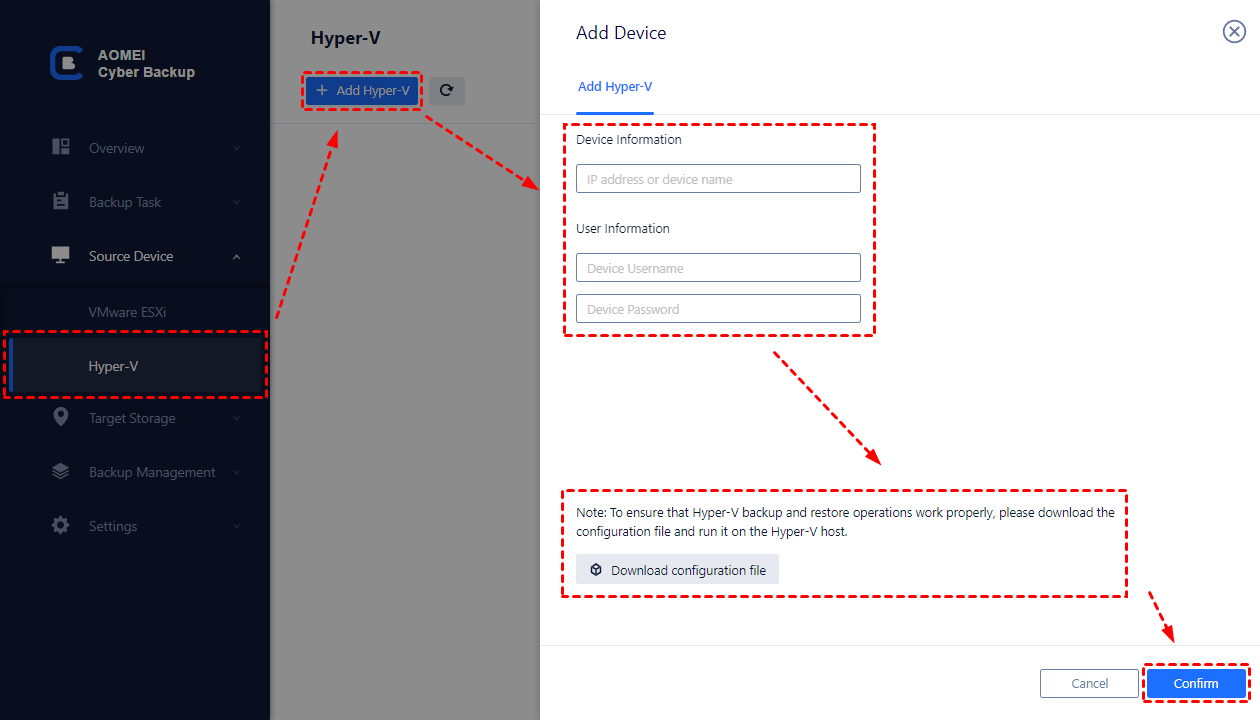
1. Bind Devices: Access AOMEI Cyber Backup web client and navigate to Source Device > Hyper-V > + Add Hyper-V to add a Hyper-V host. Click … next to the host name and select Bind Device.
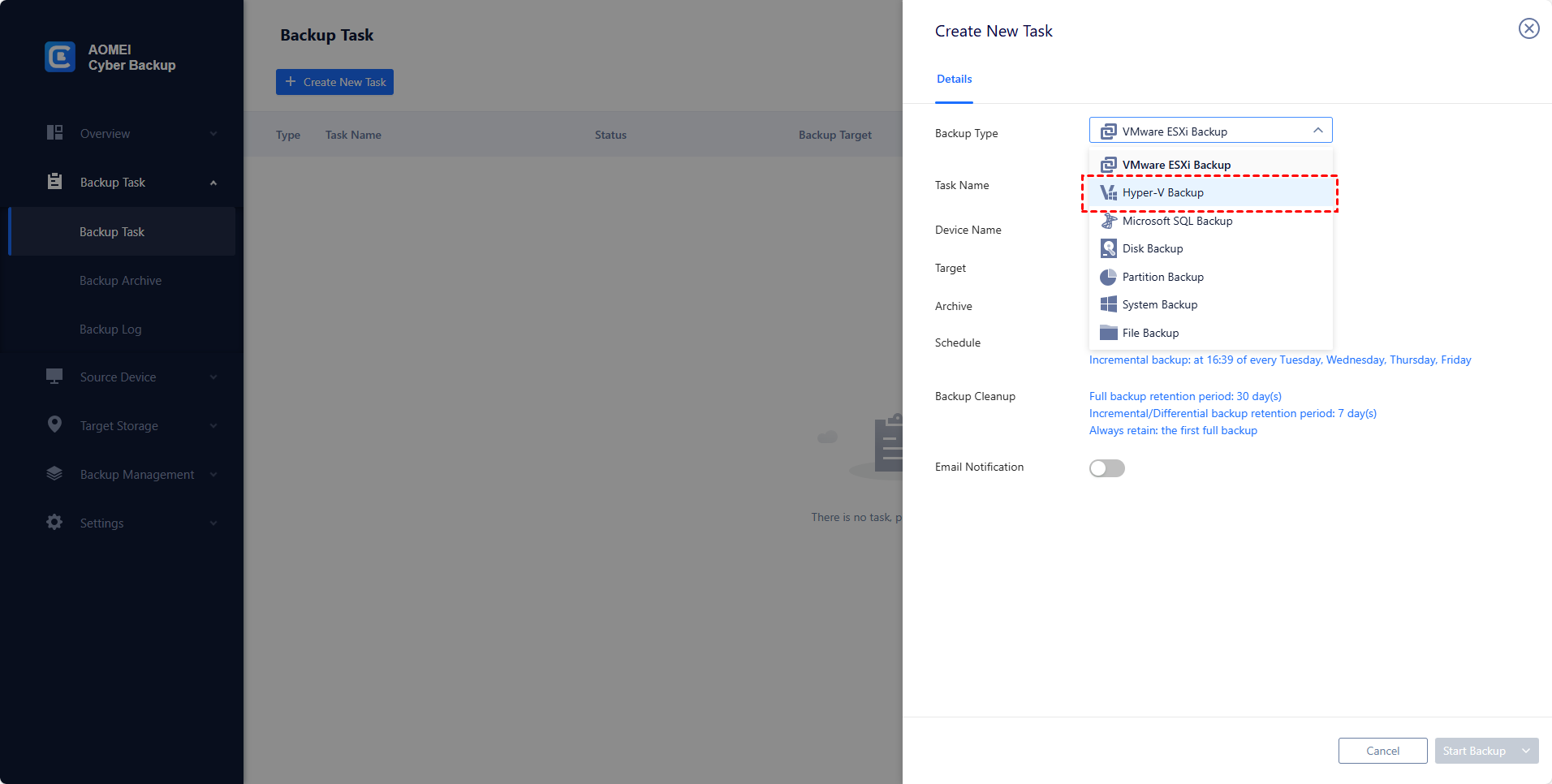
2. Create Backup Tasks: Navigate to Backup Task and click + Create New Task. Specify the Task Name, Backup Type, Device, Target, and Schedule as needed.
-
Device: Specify multiple virtual machines you want to backup.
-
Target: You can select to back up to a local path, or to a network path.
-
Schedule: Choose to perform full or incremental backup, and automate execution daily, weekly or monthly according to the frequency you specified.
-
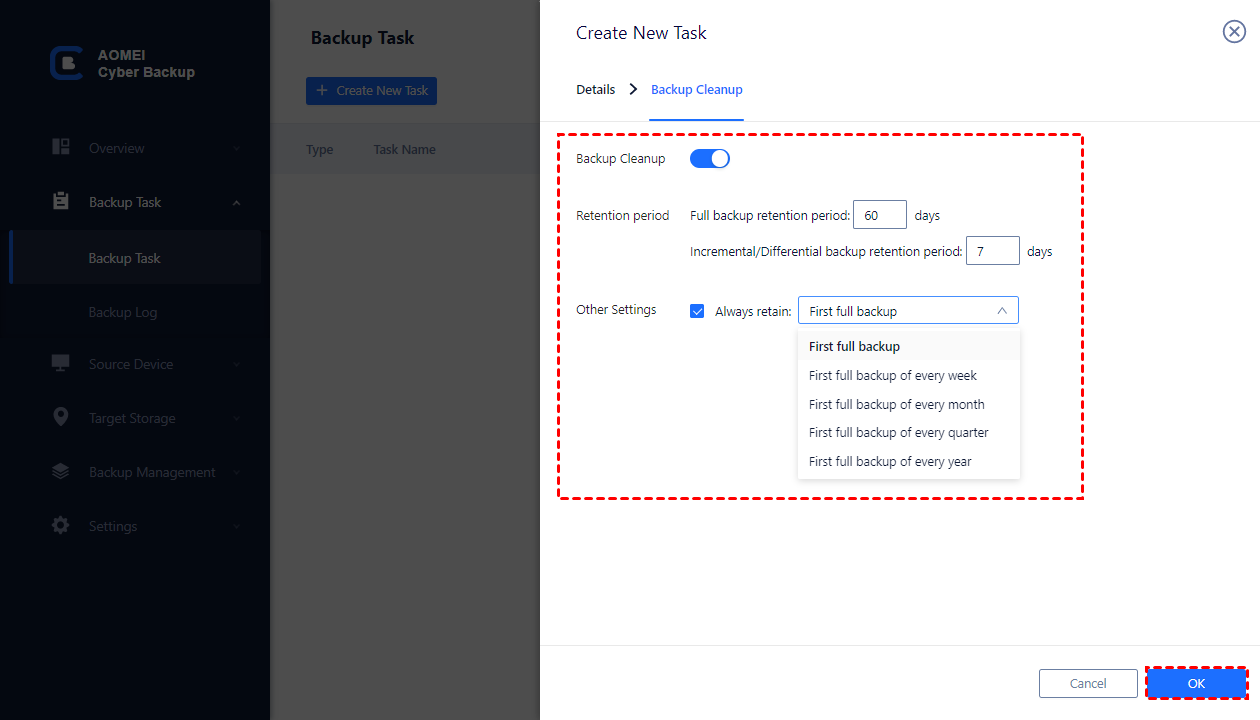
Backup cleanup: Configure a retention policy to auto delete old backup files and save storage space.
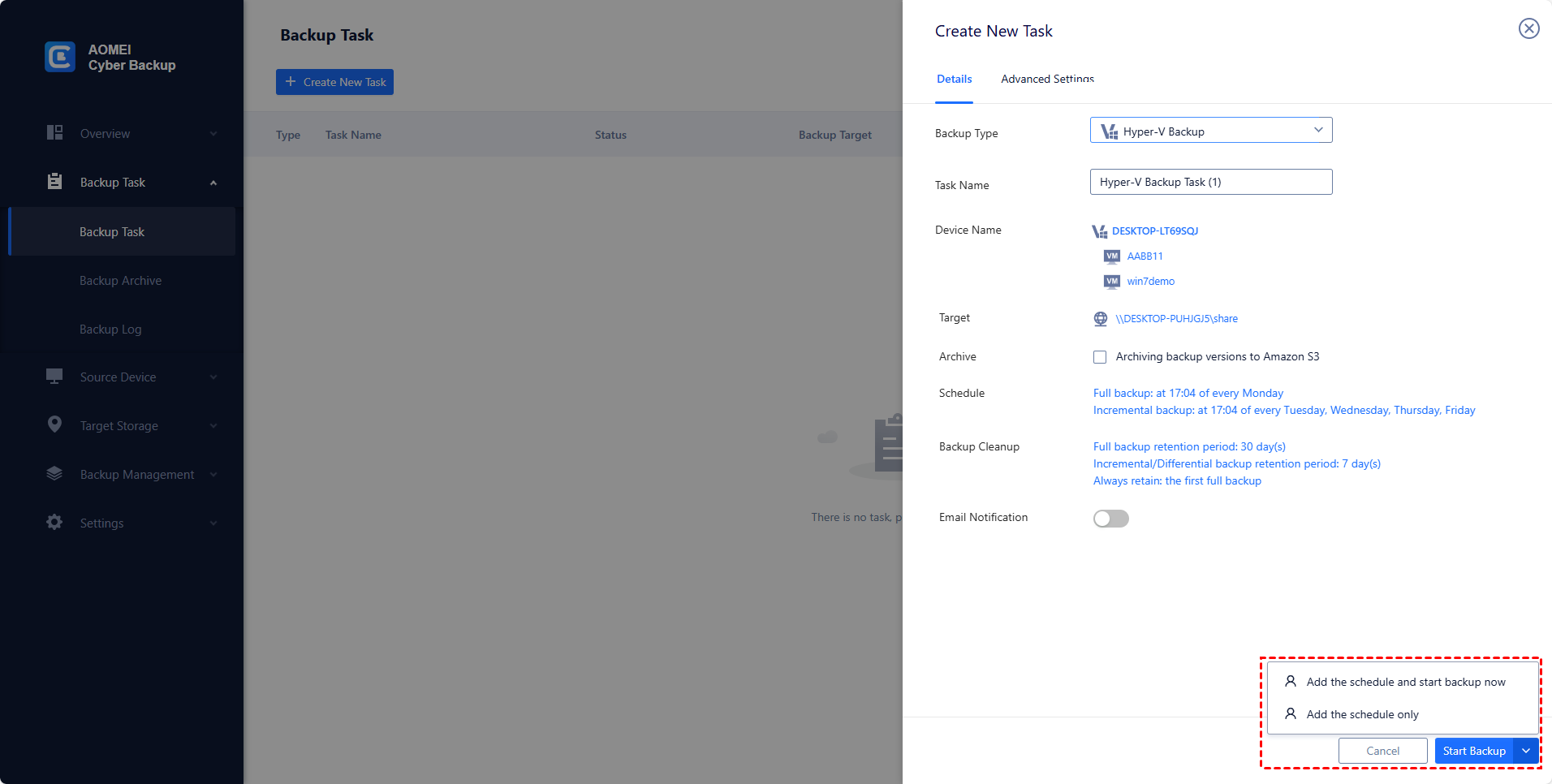
3. Click Start Backup you can select to Add the schedule only, or Add the schedule and start backup now.
4. When you want to restore VMs: Navigate to Backup Management > History Versions and select the VM you want to restore, all restore points related to the VM will be listed on the left.
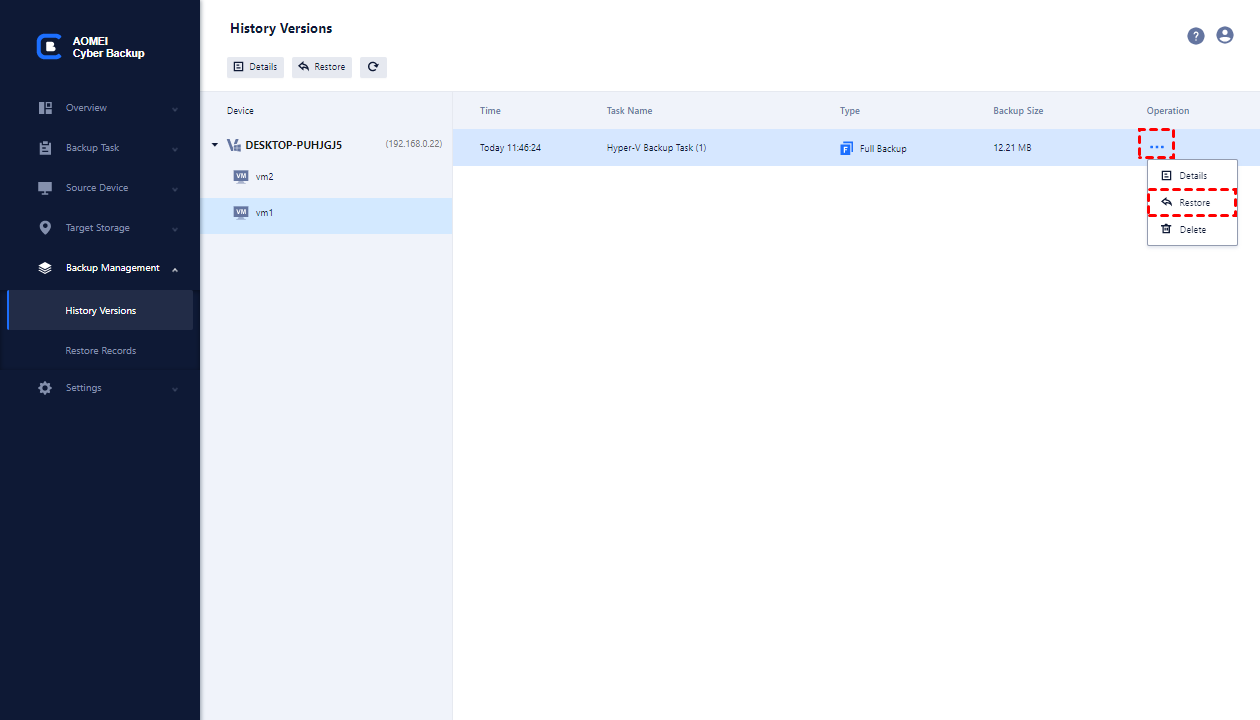
Select one and click … > Restore to open the restore wizard.
▶ Restore to original location: Recover the Hyper-V VM to its previous position fast.
▶ Restore to new location: Create a new VM in another datastore/host directly from the backup, saves the trouble of re-configuring the new VM.
Conclusion
A reliable Hyper-V backup is crucial to ensures business continuity and minimizes the risk of data loss. The popular tool like AOMEI Cyber Backup offers comprehensive solutions for backing up Hyper-V VMs, which provides features such as incremental backups, fast recovery, centralized control, etc. With a robust backup solution, organizations can recover VMs quickly and protect their valuable data from system failures.
Related videos
Video library- Cloud and Self-Hosting
Ubuntu Server Installation on Hyper-V | Step-by-Step Guide
· 4:45 · 19K views
Watch on YouTube
Keep reading
 Cloud and Self-HostingInstalling Kubernetes Dashboard on a K3s High Availability Cluster (Ubuntu 24.04)The Kubernetes Dashboard is a browser-based UI that allows you to visualize, manage, and troubleshoot workloads and resources inside your Kubernetes clu... · 2 min read
 Cloud and Self-HostingInstall a 3-Node HA Kubernetes (K3s) Cluster on Ubuntu Server 24.04 Step-by-Step (Proxmox/VM Friendly)Step-by-step guide to install a 3-node HA Kubernetes (K3s) cluster on Ubuntu Server 24.04 using Proxmox VMs. Includes setup, firewall rules, tokens, and verification. · 5 min read
 Cloud and Self-HostingHow to Install and Configure n8n on Oracle Cloud Always Free VM (Ubuntu 24.04)n8n (short for nodemation) is an open-source workflow automation platform that allows you to connect applications and APIs, automate repetitive tasks, a... · 4 min read