Cloud and Self-Hosting
Crontab Explained // Automate and Schedule Cron or CronJob Best Feature in Linux
By Amjid Ali · · Updated · 4 min read
In this article
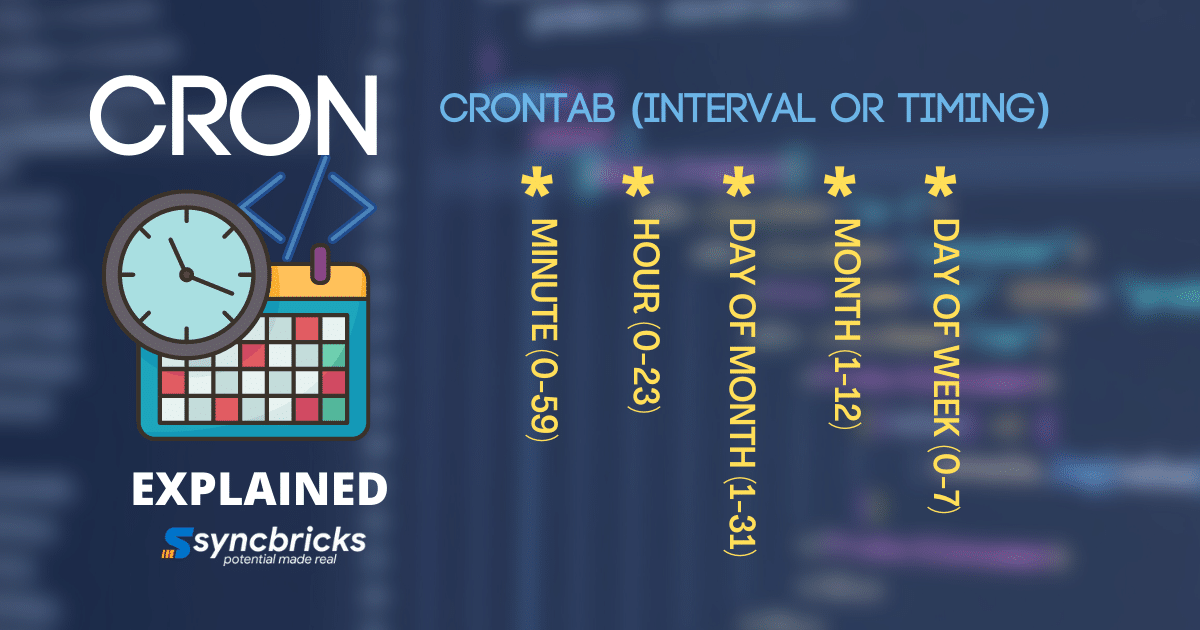
Cron in Unix-type operating systems like Ubuntu. Cron is a command-line package, tool or utility, we also know it by Cron Job. System or user defines various jobs that run on various schedules.
The Jobs can run at various schedules or intervals. In this article, I have explained everything in detail.
How to check if Cronjob service is running
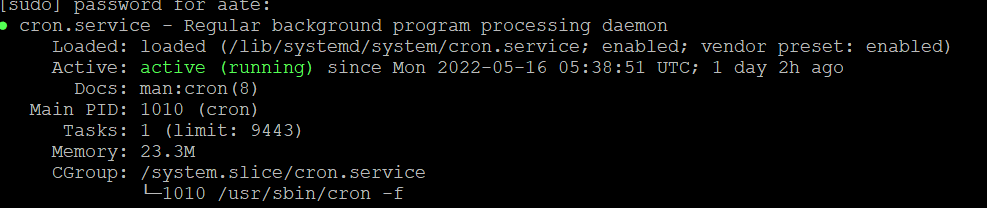
If you want to see the status of the cron service you can use the below command.
sudo systemctl status cron.service
if the service is running you will see the output like below;
What can be achieved with CronJob?
You might have various tasks or scripts that you want to run on a specific schedule/time/duration. These Tasks, Jobs or Scripts can induce ;
User-Based Scripts
- Backups of application or database
- Renewal of SSL Certificate
- Fetch Emails from Server
- Restart the Services
- Reboot the Service
- Run Workflow
System Based Scripts
How Cronjob works ?
Each line in crontab means one specific task, which means that you should specify only one script or once a task or a path of the job in that script.
The script starts with hour, month then the day of the month, and day of the week, and then the path of the script or the task. For example, if you want to run a script every morning 5 am you will have the task like below;
0 5 * * * exec '/bin/bash /home/backup.sh'
Depending upon when you want to schedule the backup you will need to run this command. So I will be using the 10th minute of every hour to start the backup I will be using the below command, depending upon the backup strategy you can use the command accordingly.
Working with CronJobs by User
User can define the cron jobs in crontab, depending upon what he wants to achive with it. I have provided few scenarios.
How to see existing CronJobs in Crontab?
You can define the jobs that will be under the specific user, if you want to see what are the user-specific cron jobs you can use the command like below, which will show you list of existing jobs;
crontab -l
How to edit and add Crontab in Linux
You can access this through the editor file and below is the command;
crontab -e
This file will be automatically created, you will need to add the bash files path or script path to this with the schedule. You can devise the frequency and time.
Schedule Basis in CronTab
- m – Minute – 0 through 59
- h – Hour – 0 through 23
- dom – Day of Month – 0 through 31
- mon – Month – 0 through 12
- dow – Day of Week – 0 through 7 (0 and 7 are both Sunday)
Time-Based Job in CronTab

In the below command, you can see that a script is running every day 8:00 AM * * any hour, any month any year etc
# 0 8 * * * script here
Hash is used in the beginning which means that the script is not active. However, if you remove and save the file script will be active. Below was enabled for SSL certificate renewal every 5th day of the month at 8:00 am
0 8 5 * * certbot renew --dry-run
Interval based Job in CronTab
Suppose if you want to run the job, task, or script after a number of minutes, hours, days, months, or weeks you can do that as well. You simply need to add / with the minute and it will start working.
For example, I created a script called backup.sh, which takes which does various tasks. In the below line crontab will execute the script every 6 hours at any date-time any day of the week, month, or day of the month.
0 */6 * * * exec '/bin/bash /home/backup.sh'
System based/defined Cron Jobs
In Unix Like operating sytem for example Ubuntu 22.04 there might be various jobs defined by the system, which you don’t need to modify but you must know that there are variuos jobs related to system maintianance that system will automatically run.
This might include checking for updates, scanning the system and so on.
Some jobs run daily , some monthly , weekly and so on.
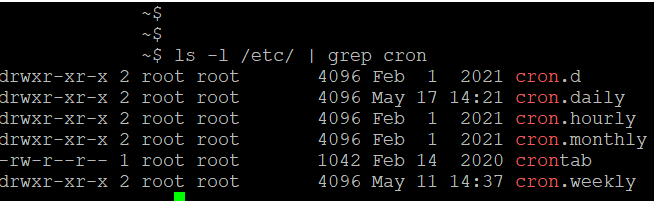
To see how many jobs are there, you can list the cron jobs in etc directory or system. You can use the following command
ls -l /etc/ | grep cron
You might get below output
In case you want to see list of all the files within the cron you can see this by below command
ls /etc/cron*
from the below output, you can explain that various files are running on a daily basis
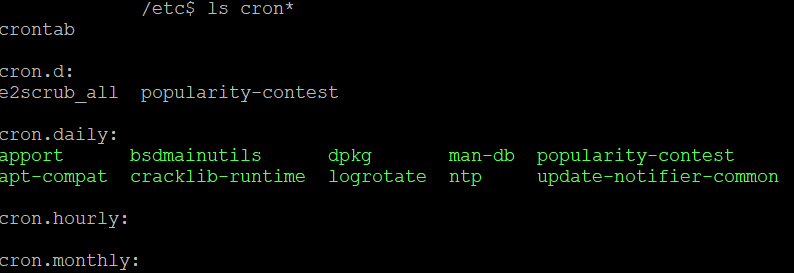
Above are system based cron jobs, which you don't need to modify.
How to view the content of the cronjob
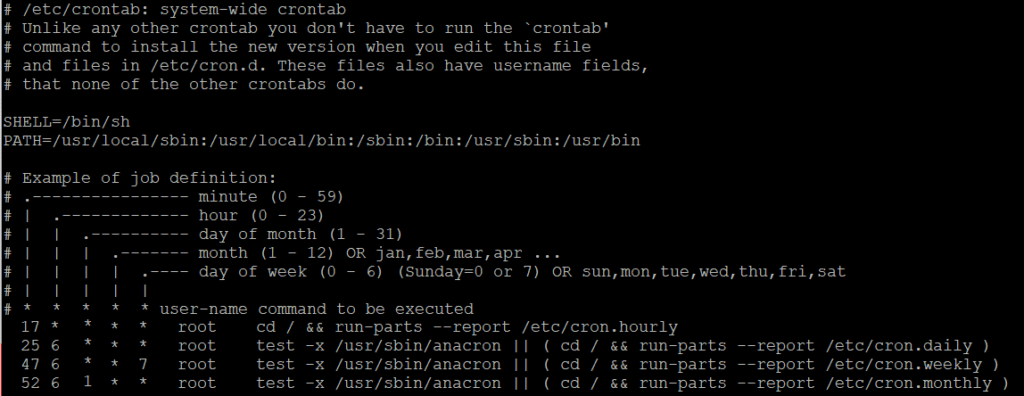
System based cron jobs are available in crontab you can view them by typing below command
cat /etc/crontab
You will get the below output.
Related videos
Video library- Cloud and Self-Hosting
Ubuntu Server Auto Updates with Crontab | Automate System Updates on Ubuntu 24.04
· 6:17 · 302 views
Watch on YouTube - AI and Automation
Schedule OpenClaw Jobs and Why You Should Stagger Them
· 3:50 · 191 views
Watch on YouTube
Keep reading
 Cloud and Self-HostingYour First Hybrid Cloud: A Beginner’s Guide to On-Premise & Cloud SynergyEver wondered how to combine the reliable control of your on-premise servers with the expansive power and flexibility of cloud services? Creating your f... · 3 min read
 Cloud and Self-HostingLearning from Data in Your Homelab: A Practical Beginner’s GuideYour homelab is a powerful learning environment, but are you tapping into its full potential? Every device and service generates valuable data streams. ... · 3 min read
 Cloud and Self-HostingWhat is Proxmox VE? A Beginner’s Guide to its Role in Open-Source Virtualization & IT InfrastructureJuggling multiple systems for your projects or homelab? Wondering how to step into virtualization without getting overwhelmed? Proxmox VE could be your ... · 3 min read